

PKCE Guide
Step 1: Send your user to OpenRouter
To start the PKCE flow, send your user to OpenRouter’s/auth URL with a callback_url parameter pointing back to your site:
code_challenge parameter is optional but recommended.
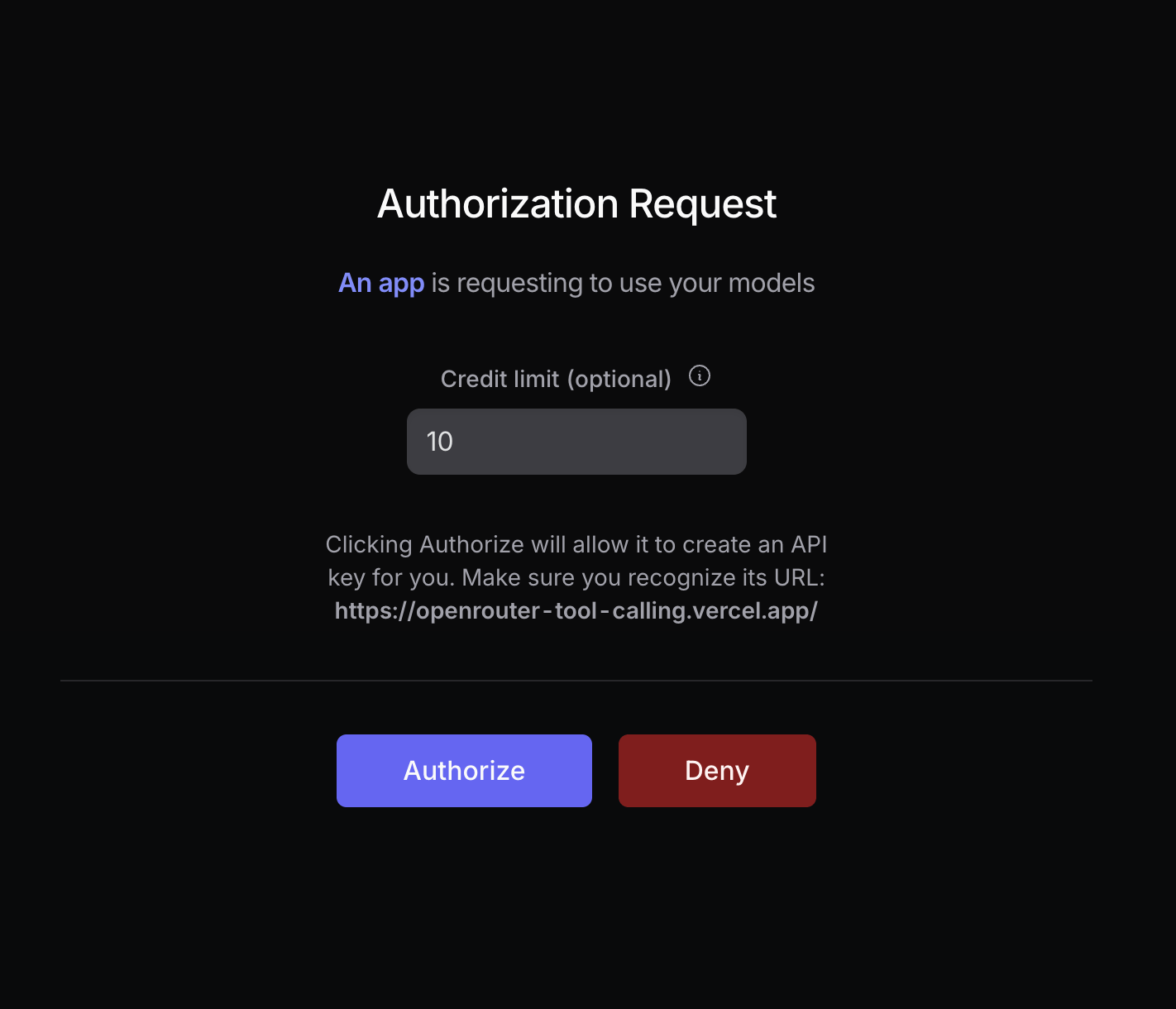
Your user will be prompted to log in to OpenRouter and authorize your app. After authorization, they will be redirected back to your site with a code parameter in the URL:
How to Generate a Code Challenge
The following example uses the Web Crypto API and the Buffer API to generate a code challenge for the S256 method. You will need a bundler to use the Buffer API in the web browser:Localhost Apps
Localhost callbacks are supported on any port. This is useful for CLI tools and local-first apps that bind to an arbitrary free OS port for the OAuth callback (e.g.http://localhost:51423/callback).
Localhost apps are assigned a fixed title matching the host and port (e.g.
localhost:3000) but will not appear in the OpenRouter marketplace or rankings. If you want a custom app name and marketplace presence, use a public URL as the callback instead.Headless Apps (SSH Servers, Containers)
If your app runs where a localhost callback can’t be reached (an SSH session, a remote dev box, a container), omitcallback_url entirely:
Headless (No Callback)
code_challenge is required in this mode: because the code is displayed on screen, PKCE ensures it is useless to anyone without your app’s code_verifier. The code is single-use and expires after 10 minutes.
Optional Parameters
If both
workspace_id and required_workspace_id are present, required_workspace_id takes precedence. Use workspace_id to suggest a workspace and required_workspace_id to enforce one (for example, an internal onboarding flow that must mint keys into a specific team workspace).
Workspace IDs are validated server-side against the account the user authorizes with. A workspace the user cannot access is rejected, regardless of what the URL asked for.
Step 2: Exchange the code for a user-controlled API key
After the user logs in with OpenRouter, they are redirected back to your site with acode parameter in the URL:

https://openrouter.ai/api/v1/auth/keys to exchange the code for a user-controlled API key:
Deep-link to the user’s key
Once you have the API key, you can create links to the user’s OpenRouter activity and key settings pages by hashing the key with SHA-256. Use the lowercase hexadecimal digest in both URLs:404 rather than showing unfiltered data.
And that’s it for the PKCE flow!
Step 3: Use the API key
Store the API key securely within the user’s browser or in your own database, and use it to make OpenRouter requests.Error Codes
400 Invalid code_challenge_method: Make sure you’re using the same code challenge method in step 1 as in step 2.403 Invalid code or code_verifier: Make sure your user is logged in to OpenRouter, and thatcode_verifierandcode_challenge_methodare correct.403 Authorization code expired: Authorization codes expire 10 minutes after issuance. Restart the OAuth flow and exchange the new code promptly.405 Method Not Allowed: Make sure you’re usingPOSTandHTTPSfor your request.